
How to Create Scatter Plots in Matplotlib Python?

Scatter Plots
Scatter plots are used in statistics to visualize the relationship between two numerical variables. Each point in a scatter plot represents an individual record or observation from the dataset, plotted against each other, one on the x-axis and the other on the y-axis. Scatter plots help us understand if there is a correlation between two variables; it could be positive, negative, or no correlation.
Scatter plots can also reveal the presence of distinct groups or clusters within the data, which might indicate that the data points within each cluster share some common characteristics. They can also detect outliers or data points that significantly deviate from the overall pattern of the data.
Create a Scatter plot
To create a scatter plot in matplotlib, use the plt.scatter() function. Let’s read the penguin dataset and examine the relationship between `flipper_length_mm` and `body_mass_g`. You can find the data here - matplotlib-python-book
# silence warnings
import warnings

warnings.filterwarnings("ignore")

# import pandas and matplotlib
import pandas as pd
import matplotlib.pyplot as plt

# read data
df = pd.read_csv("../data/penguins.csv")
df.head()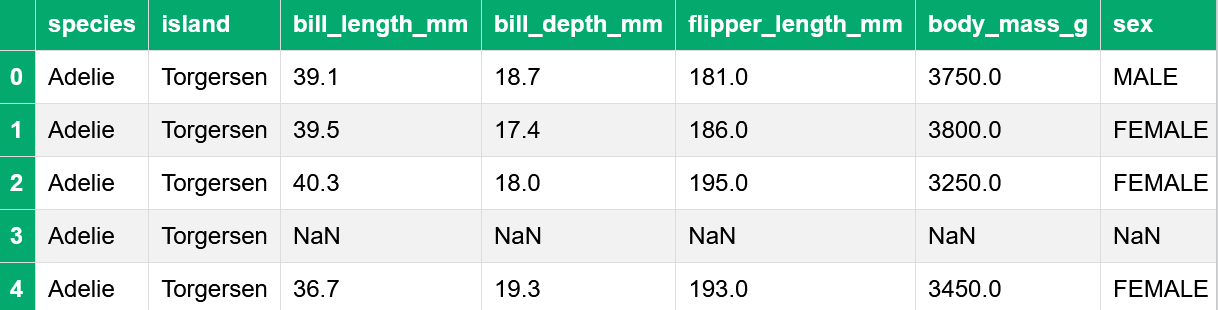
We can see there are some missing values; let’s drop them.
# drop missing values
df.dropna(inplace=True)
We will plot the `flipper_length_mm` on the x-axis and `body_mass_g` on the y-axis.
# create a scatter plot
plt.scatter(df["flipper_length_mm"], df["body_mass_g"])
plt.title("Flipper Length vs. Body Mass in Penguins")
plt.xlabel("Flipper Length")
plt.ylabel("Body Mass")
plt.show()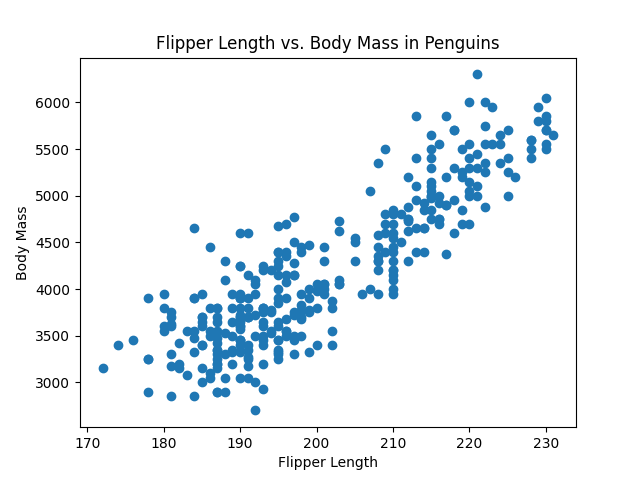
Looking at the graph, I feel these variables have a positive correlation. On average, penguins with longer flippers weigh more than penguins with shorter flippers.
Marker style
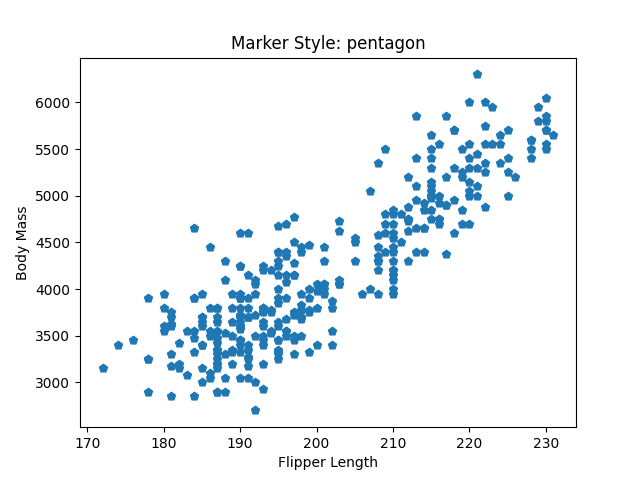
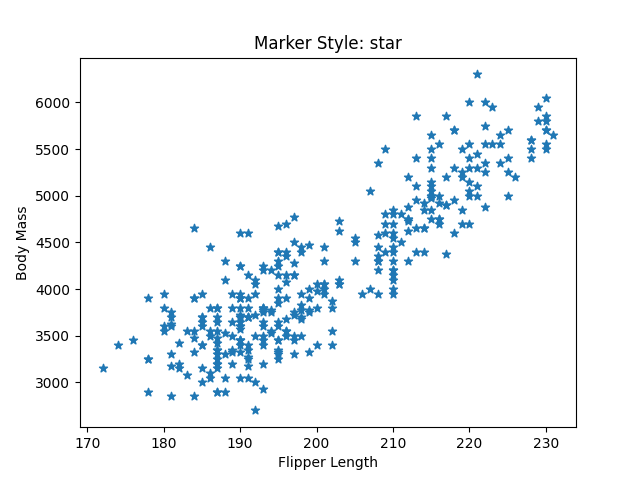
Use `marker` to change the marker style of a scatter plot. There are various marker styles available in matplotlib, which you can find here - marker styles
# scatter plots with different marker style
styles = ["^", "p", "*", "+"]
descriptions = ["triangle_up", "pentagon", "star", "plus"]

for style, desc in zip(styles, descriptions):
    plt.scatter(df["flipper_length_mm"], df["body_mass_g"], marker=style)
    plt.title(f"Marker Style: {desc}")
    plt.xlabel("Flipper Length")
    plt.ylabel("Body Mass")
    plt.show()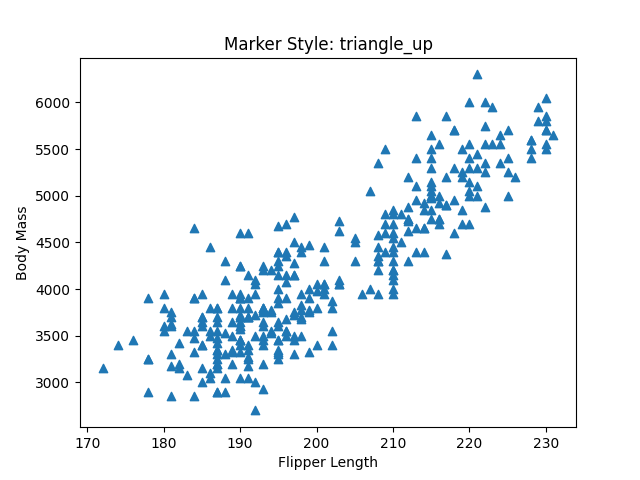
Marker color
Use the `c` or `color` to change the marker color.
# scatter plot with custom color
plt.scatter(df["flipper_length_mm"], df["body_mass_g"], c="green", marker="+")
plt.title("Flipper Length vs. Body Mass in Penguins")
plt.xlabel("Flipper Length")
plt.ylabel("Body Mass")
plt.show()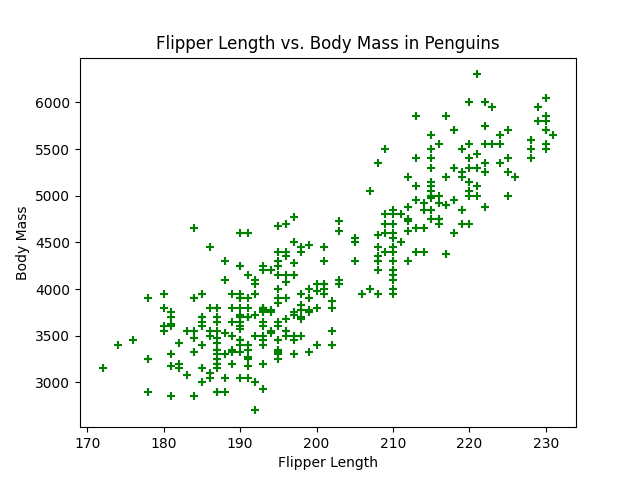
Marker size
The `s` controls the size of the markers on a scatter plot. You can specify `s` as a single number or an array of sizes to give each data point a different size. This is useful for adding an additional dimension to a two-dimensional scatter plot, as we do in bubble charts.
# scatter plot with different marker size
plt.scatter(
    df["flipper_length_mm"], df["body_mass_g"], c="magenta", s=df["bill_length_mm"]
)
plt.title("Flipper Length vs. Body Mass in Penguins")
plt.xlabel("Flipper Length")
plt.ylabel("Body Mass")
plt.show()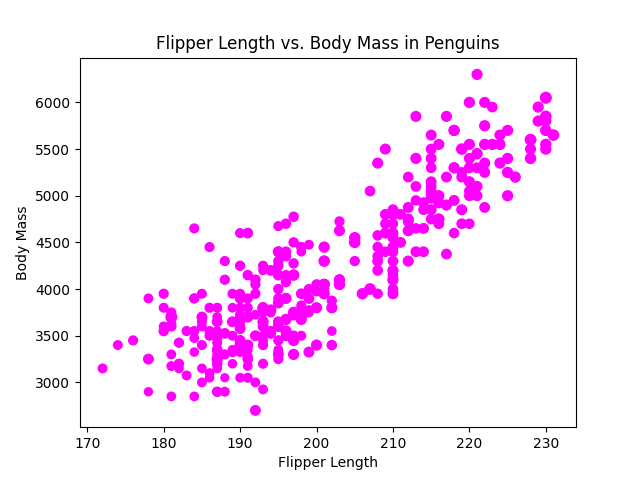
Color bar
We can also color the markers according to their size. For this, we must first set the `c` with the variable that specifies the size, then use the `cmap` to map the data to colors, and then use the plot.colorbar() function to show the color bar on the plot. Use `label` to add a label to the color bar. You can find various options for `cmap` here - cmap options
# scatter plot with a color bar
plt.scatter(
    df["flipper_length_mm"], df["body_mass_g"], c=df["bill_length_mm"], cmap="plasma"
)
plt.title("Flipper Length vs. Body Mass in Penguins")
plt.xlabel("Flipper Length")
plt.ylabel("Body Mass")
plt.colorbar(label="Bill length")
plt.show()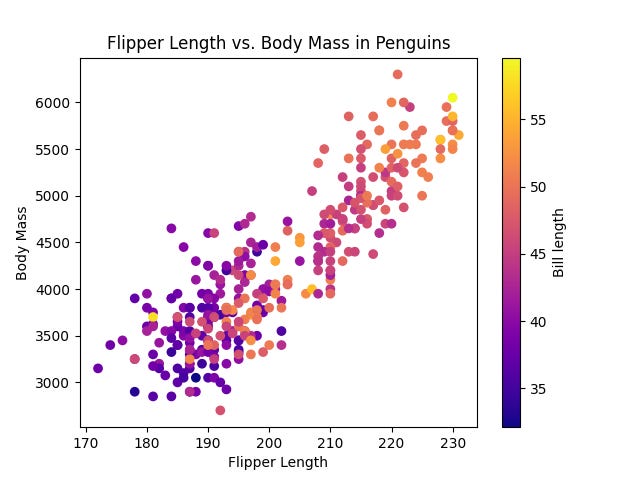
Scatter plot with legend
To create a Scatter plot with a legend, add a `label` to the plot and then add a `plt.legend()` function. Adding a label and a legend will help us identify different classes or groups within a dataset. For example, we can see how the body mass and flipper length change based on the type of penguin species.
# get unique species
unique_species = df["species"].unique()

# create a scatter plot for each species
for species in unique_species:
    df_species = df[df["species"] == species]
    plt.scatter(
        df_species["flipper_length_mm"], df_species["body_mass_g"], label=species
    )

plt.title("Flipper Length vs. Body Mass by Penguin Species")
plt.xlabel("Flipper Length")
plt.ylabel("Body Mass")
plt.legend()
plt.show()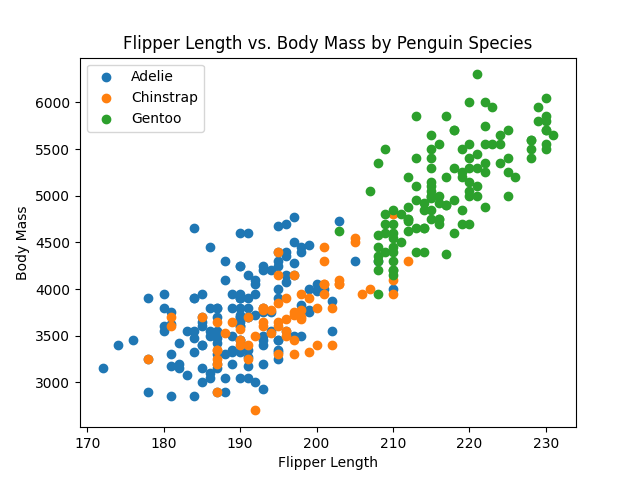
This plot shows that `Gentoo` species tend to have considerably longer flipper lengths and higher body masses than `Adelie` and `Chinstrap` species.
Transparent markers
The `alpha` controls the transparency level of the markers in the scatter plot. The `alpha` value ranges from 0 to 1, where 0 is fully transparent (the markers are invisible) and 1 is fully opaque (the markers are completely solid). This is handy in scatter plots with many overlapping points.
# scatter plot with alpha
plt.scatter(df["flipper_length_mm"], df["body_mass_g"], c="magenta", alpha=0.5)
plt.title("Flipper Length vs. Body Mass in Penguins")
plt.xlabel("Flipper Length")
plt.ylabel("Body Mass")
plt.show()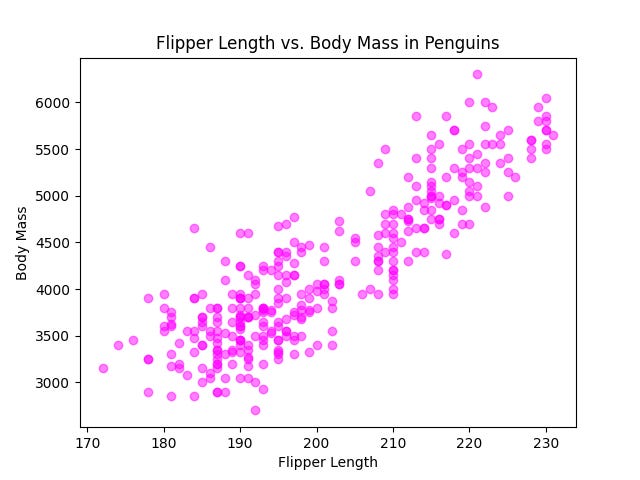
Exercise 3.1
Read the `tips.csv` data in pandas.
Create a scatter plot with `total_bill` on the x-axis and `tip` on the y-axis.
Change the marker style to `tri_down` or your other choice.
Change the marker color to `magenta` or your favorite color.
Add a color bar using the `size` column, i.e., the number of people at the party.
Create a Scatter plot with a legend using the `sex` column.
Summary
Scatter plots are used to visualize the relationship between two variables.
Use the plt.scatter() function to create a Scatter plot in matplotlib.
Marker styles can be changed with the `marker`.
Marker color can be changed with `c` or `color`.
The `s` change the marker size.
To add a color bar, define `c` and `cmap`, then add plt.colorbar()`.
Use the `label` and `plt.legend()` to add a legend.
Solution
Exercise 3.1
# Read tips data in a pandas
df = pd.read_csv("../data/tips.csv")

# Create a Scatter plot
plt.scatter(df["total_bill"], df["tip"])
plt.title("Total Bill Vs Tip")
plt.xlabel("Total Bill")
plt.ylabel("Tip")
plt.show()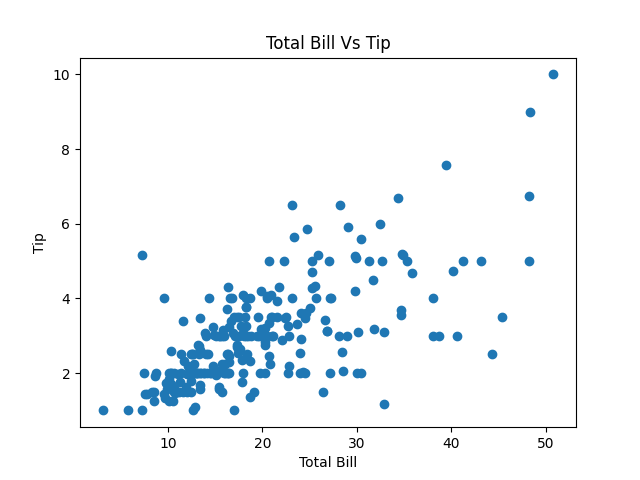
# Scatter plot with style and color bar
plt.scatter(df["total_bill"], df["tip"], c=df["size"], marker="1", cmap="cool")
plt.title("Total Bill Vs Tip")
plt.xlabel("Total Bill")
plt.ylabel("Tip")
plt.colorbar(label="Number of People at the Party")
plt.show()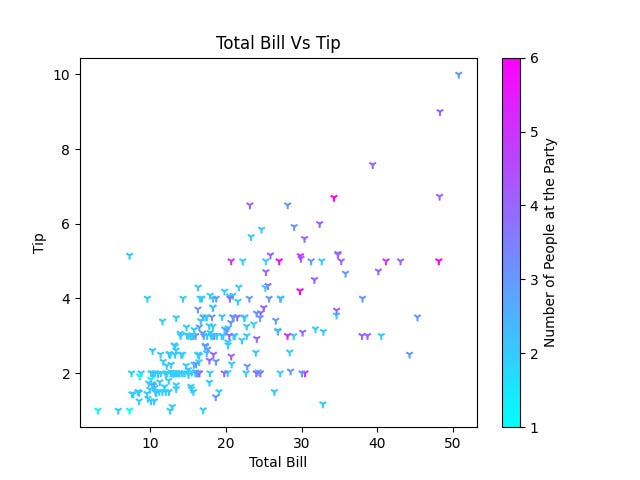
# scatter plot with a legend
sex_types = df["sex"].unique()

for sex in sex_types:
    df_sex = df[df["sex"] == sex]
    plt.scatter(df_sex["total_bill"], df_sex["tip"], label=sex)

plt.title("Total Bill Vs Tip By Sex")
plt.xlabel("Total Bill")
plt.ylabel("Tip")
plt.legend()
plt.show()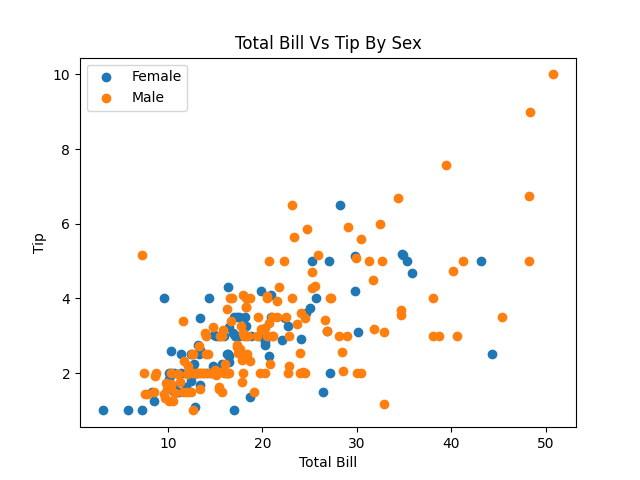
Pre-order
If you enjoyed this article and are looking for more insightful content, consider pre-ordering my upcoming book on matplotlib at a 40% discount, or subscribe to our newsletter below for free. Your support helps me continue to share valuable knowledge. Thank you for reading.
astonishing, useful, thanks